Formerly known as Google Webmaster Tools, Google Search Console is an invaluable tool for anyone who wants more insight into how their website is performing and who is accessing it. It makes for a great supplement to the information provided by Google Analytics, and thus it’s important to use both to monitor your website.
Here’s a quick guide to setting up Google Search Console:
1. Add your website
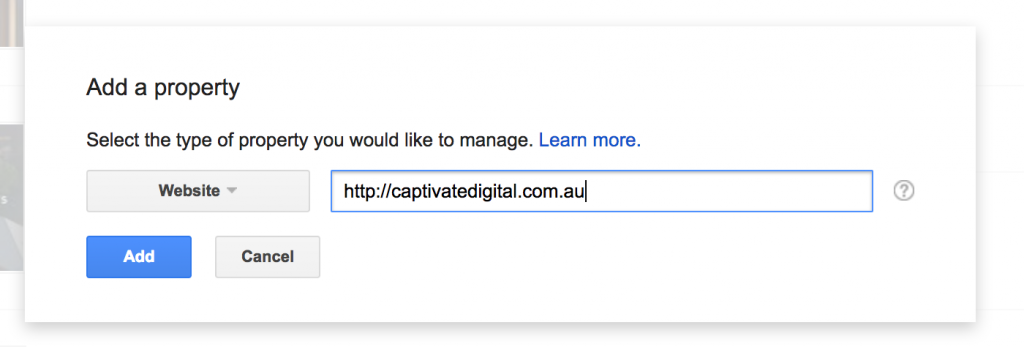
First, make sure you’re logged into your Google account and then head over to the Google Search Console tool.
Add a property to Google Search Console by typing in your web address. It doesn’t really matter if you include the www or not – you’ll specify you preferred version later.
2. Verify your website
Next, you must verify that you own the website. There are several ways you can do this: we recommend trying to verify by Google Analytics first, which should work straight away if you already have an Analytics account set up for your website.
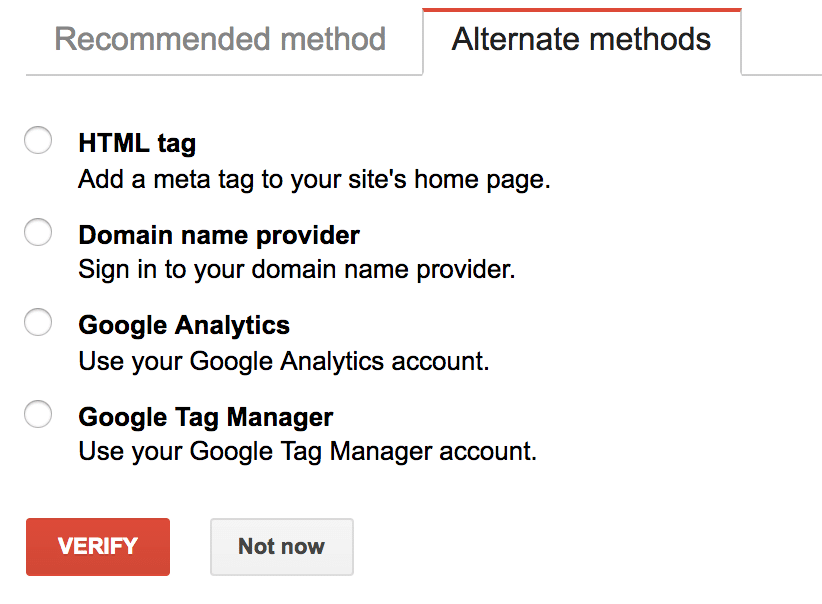
If this doesn’t work, it should be quick and easy to either add an HTML tag to your website header (if you’re familiar enough with HTML code to do so, this tag should go between the <head> and </head> tags), or upload a file to your website (if you have access to your Cpanel or FTP).
Search Console should register your site ownership within seconds. If you’ve added a tag or file, be sure never to remove these from your site or else it will become unverified.
3. Link Google Analytics to Google Search Console
One really important step that many often neglect is to link your Analytics and Search Console accounts. Both accounts provide similar yet different data, but once you link them you’ll have access to even more data and reports that these tools can’t provide individually.
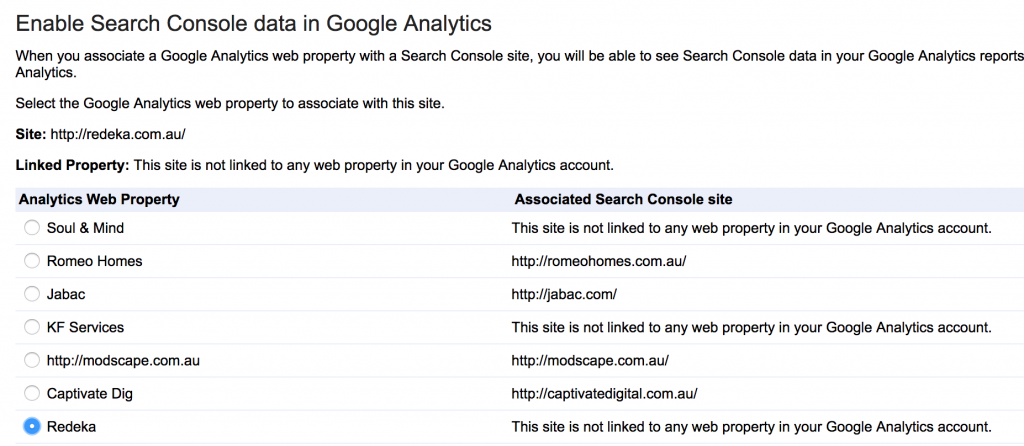
To link the two accounts, click the gear icon on the Google Search Console homepage, then click Google Analytics Property.
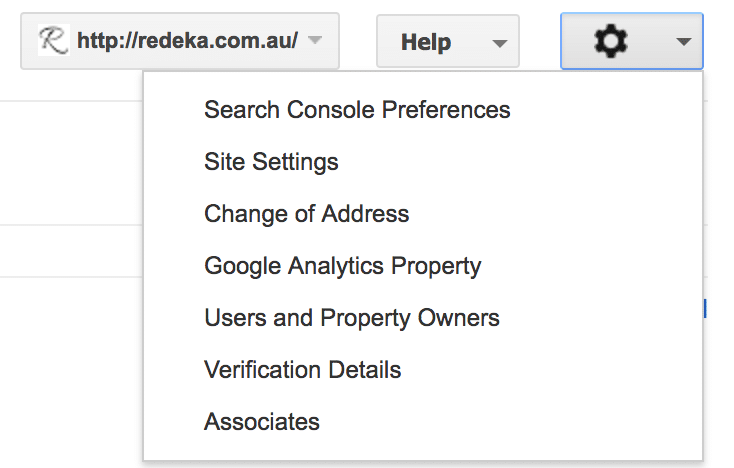
Next, the screen should load all Google Analytics properties you have set up under your Google account. Simply select the one you’d like to link to this Google Search Console account and click Save.
4. Specify your preferred domain
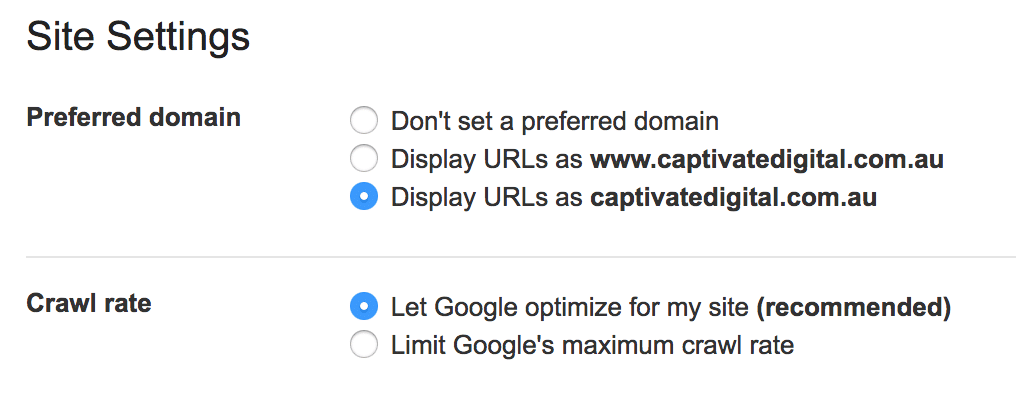
Ever wonder whether it matters if you type the www before your domain name or leave it out? It’s best practise to specify which version you prefer within the Google Search Console tool.
Not only will this ensure that all your URLs display the same way no matter how a person enters it, but also that all your SEO juice and keyword ranking data is streamlined into one URL version rather than diluted between the two.
To set your preferred domain, click the gear icon in Google Search Console, select Site Settings, and select your preferred domain. We always opt for the non-www version of the site, but it’s really a personal preference.
5. Submit your site for indexing by Google
Last, you’ll want to let Google know that it should crawl your website. This is especially handy if your site is new or if you’ve recently made significant changes to it.
On the Google Search Console dashboard, click Crawl and then Fetch as Google in the left sidebar.
If you only want to submit a specific page, then type the subpage name in the box; otherwise, leave it blank to crawl the homepage. Click the Fetch and Render button.
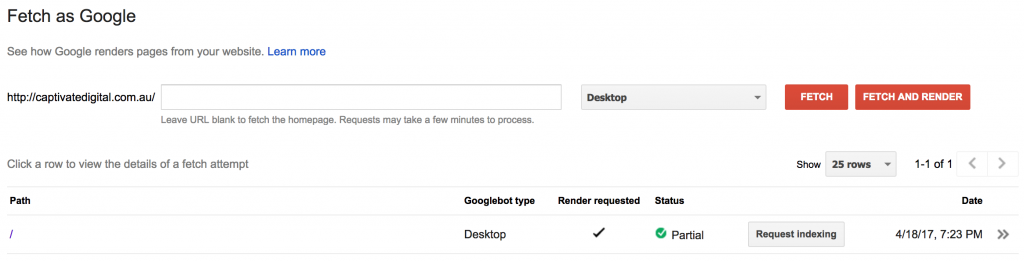
Once the fetch is complete, click the Request Indexing button to submit to Google for indexing. Be sure to check off Crawl this URL and its direct links if you want your entire site indexed, else check off Crawl only this URL.
That’s it! You’re all set up on Google Search Console now.
Rock Solid Marketing provide Mildura & Melbourne SEO services. Contact us for help in managing your SEO!